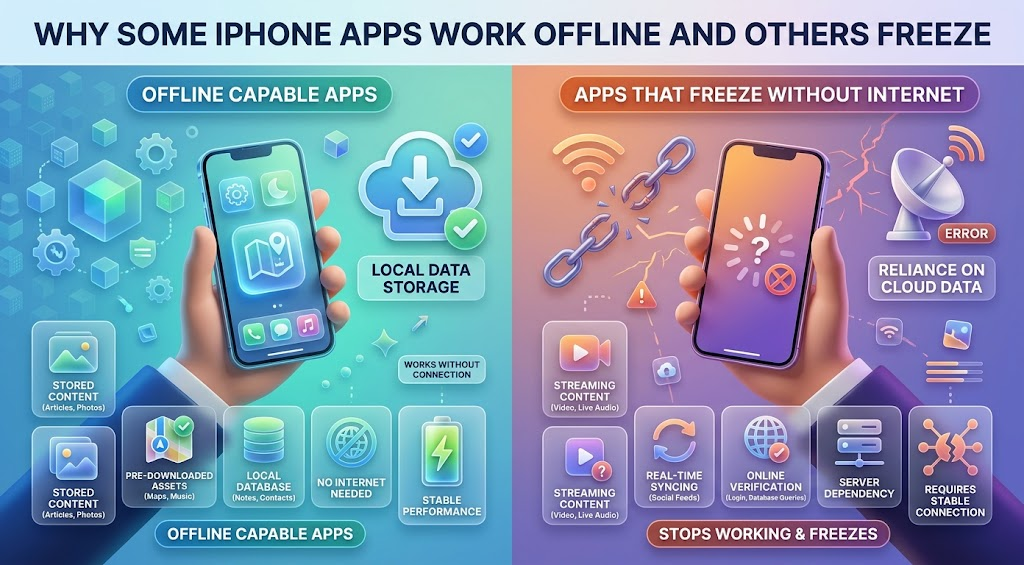
Offline iPhone apps keep working in places where others show a spinning wheel: elevators, parking garages, subway tunnels, and planes. The difference has little to do with your phone or your carrier. It comes down to one design choice the app makers made long before you downloaded it. Our team has built apps both ways, and the gap between them is bigger than most people expect. Here is what is going on inside the app when you lose signal, and how to check an app before you rely on it.
How often is your phone actually offline?
Not often, but enough to notice. Opensignal’s July 2026 US Mobile Network Experience report measured how much of the time users stayed connected between April and June 2026:
| Carrier | Time on network | Average download speed |
|---|---|---|
| AT&T | 99.6% | 96.0 Mbps |
| Verizon | 99.5% | 89.4 Mbps |
| T-Mobile | 99.2% | 192.5 Mbps |
99.5% sounds close to perfect. But 0.5% of a 24-hour day is about 7 minutes. Those minutes tend to land at the worst times, like checking a boarding pass in a jet bridge or pulling up a grocery list in a store basement.
Slow connections are the bigger problem. The same report found Verizon users were on 5G only 66.6% of the time. A phone with one bar is technically connected, but an app waiting on a slow server feels just as broken as one with no signal at all.
What “works offline” really means inside an app
An app works offline when it saves your data on the phone first and sends it to the internet later. Developers call this local-first. The other approach, online-first, sends every tap to a server and waits for an answer before updating the screen.
A simple way to picture it:
- Online-first app: you add an item to a list, the app asks the server to save it, and the screen updates only after the server replies. No signal, no update.
- Local-first app: you add the item, the app saves it on your phone right away, and the screen updates instantly. A sync engine sends the change to the server when a connection comes back.
Most apps you use are online-first because it is simpler to build. One copy of the data lives on the server, so there is only one version to keep correct. Local-first apps keep two copies, one on your phone and one on the server, and have to keep them matched.
What we learned building an offline app
We built a mobile app that had to work fully offline, so local-first was not optional. Our team chose Flutter for the app and PowerSync as the sync engine instead of writing our own syncing code.
The offline mode worked as planned. The surprise was what it did for speed. Because every tap reads and writes data on the phone first, the app felt instant whether the user had five bars or none. We stopped worrying about how long the database took to respond, because the user never waited on it. The server catches up in the background.
That is the hidden benefit of offline design. Every user gets a faster App, including the ones with full signal.
Why offline apps are harder to build
Offline apps take more work because two copies of the same data can disagree. Imagine you and a family member edit the same shared shopping list while both of you are offline. You delete “milk.” They change it to “oat milk.” When both phones reconnect, the app has to decide which change wins, or how to keep both.
This is called a sync conflict, and every offline app needs rules for it. Some apps let the latest change win. Some merge changes. Some ask you to choose. Bad rules lose data quietly, which is worse than showing an error.
This is also why many apps skip offline support entirely. It adds cost to the iOS app development work up front, in planning the data model, the sync rules, and the testing. For a banking app that must always show the live balance, online-first can be the right call. For notes, lists, field work, and travel, offline support is usually worth it.
How to test if an app works offline
You can check any app in under a minute before you depend on it:
- Open the app and load the screen you care about, like your boarding pass, list, or notes.
- Turn on Airplane Mode.
- Close the app fully, then reopen it.
- Try to view your data, then try to add or change something.
- Turn Airplane Mode off and check that your change shows up on another device or on the web.
If step 4 shows a spinner or an error, the app is online-first. Save a screenshot of anything important before you head somewhere with weak signal. If step 5 loses your change, that app has sync problems, and you should be careful trusting it with anything you can’t retype.
At 99.5% coverage, the math still leaves about 7 minutes a day without a connection. Whether an app keeps working in those 7 minutes was decided by the team that built it.
Author: Shir Keren
Shir Keren works at AppMakers USA as a Project Manager and QA Analyst, keeping teams aligned and releases dependable. She supports planning, day to day coordination, and hands-on testing, with a strong focus on usability and detail. Outside the studio, she is usually hiking with her dog, cooking something new, or working on creative side projects.
